The 5-Minute Monthly Security Audit: How to Prevent 90% of Breaches

As a manager, your schedule is already overflowing. Between strategy meetings, personnel management, and putting out daily fires, finding time for proactive IT security feels nearly impossible. Often, security becomes something you only think about when there is a crisis.
But reliance on a "set it and forget it" approach to team access creates dangerous blind spots. A contractor leaves but still has the Google Drive password. An intern changes departments but keeps admin access to the company Twitter account. Over time, these small gaps compound into significant vulnerabilities.
The good news is that you don't need to perform a deep-dive forensic analysis every week to stay safe. Consistency beats intensity. A standardized, high-level scan conducted once a month can prevent an estimated 90% of common security lapses caused by human error and neglect.
Put a recurring 15-minute block on your calendar for the 1st of every month (5 minutes for the review, 10 minutes for coffee), and use this checklist to maintain a tight security perimeter.
Table of Contents
1. The "Offboarding" Check (1 Minute)
Goal: Ensure no former employees retain access.
The most common security weakness in growing companies is "orphan accounts"—active accounts belonging to people who no longer work there. These are prime targets for attackers because no one is monitoring them.
- Review Active Users: Open your main Team Member or User list in your password manager or primary identity tool.
- Identify Leavers: Scan the list against mental notes of recent departures. Are there contractors whose projects ended last week? Employees who left in the last 30 days?
- Action: If found, offboard them immediately. In TeamPassword, removing them automatically revokes their access to all shared groups and credentials instantly.
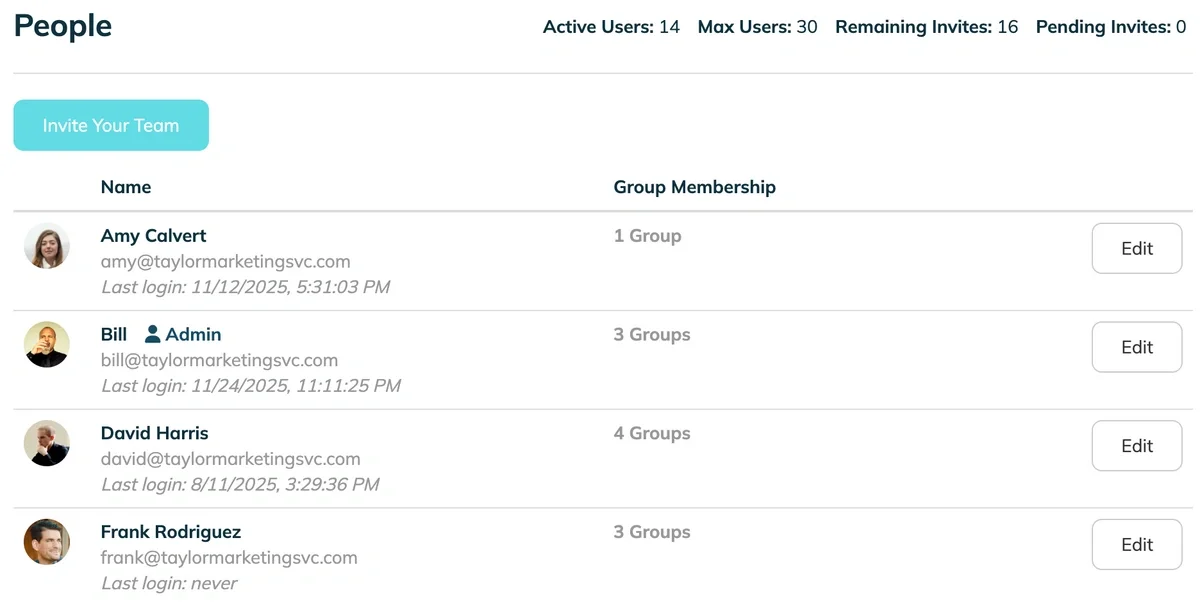
TeamPassword's People view. Click Edit to remove a user.
2. The "Anomaly" Scan (2 Minutes)
Goal: Spot unusual behavior using the Activity Log.
You aren't looking to spy on your employees; you are looking for patterns that don't make sense. A quick glance at the high-level actions in your Activity Log can reveal red flags before they become incidents.
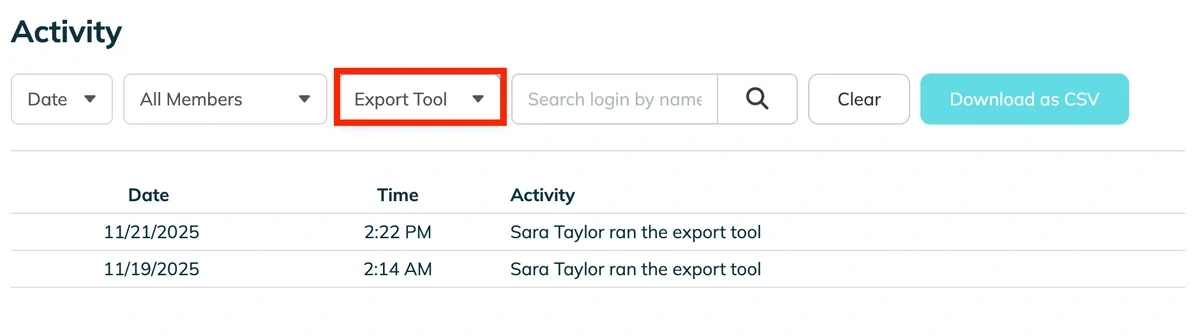
- Filter by Action: Don't look at everything. Filter your Activity Log specifically for high-risk actions like "Deletions" or bulk "Exports."
- Check Volumes and Times: Did one user export the entire client database at 11:30 PM on a Saturday? Did someone delete 15 critical passwords in a row on a Tuesday morning?
- Action: If you see a spike in activity that doesn't match a known work project, send a quick, neutral message to that user to verify the intent. (e.g., "Hey, saw a bulk export on the weekend, just making sure that was you preparing for the Monday audit?")
3. The "Keys to the Castle" Check (1 Minute)
Goal: Protect your most critical assets by enforcing "least privilege."
Not everyone needs access to everything. Access creep happens when temporary permissions are granted for a specific project but never revoked once the project ends.
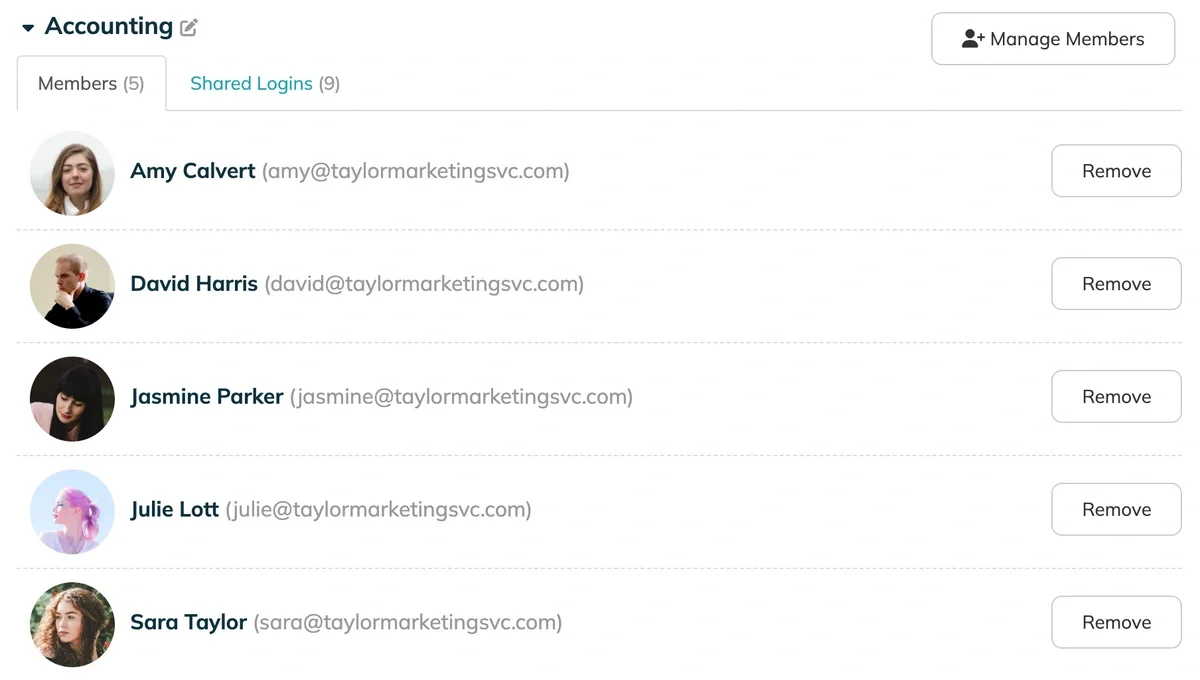
- Select Critical Groups: Filter your view for your most sensitive groups, such as "Admin," "Financial Banking," or "Exec Social Media."
- Verify Membership: Look at the list of people in those groups. Does the summer marketing intern still have access to the corporate bank login? Does a junior developer have production database access they no longer need?
- Action: Downgrade access immediately for anyone who has moved teams or no longer requires high-level clearance to do their daily job.
4. The "Health" Check (1 Minute)
Goal: Ensure hygiene in credential management.
Old passwords are inherently risky. If a service you use suffered a data breach two years ago, and you haven't changed that password since, you are vulnerable to credential stuffing attacks.
- Sort by Date: Look at your organization's most frequently used logins.
- Identify Stale Passwords: Check the "last modified" date. Are you still using a password created 3 years ago for your main info@ email account?
- Action: You don't need to change everything today. Just flag one or two critical, outdated passwords to be rotated (updated) this week.

Feel free to right-click and save this image for future reference
Small Habits, Big Security
Security isn't a destination; it's a habit. By dedicating just five minutes a month to this review, you shift your posture from reactive to proactive. You gain the peace of mind that comes with knowing your perimeter is secure, your team has the access they need (and nothing more), and you aren't leaving doors unlocked for former employees.
Stop reading and set a recurring calendar appointment for the first of the month right now. Your future self will thank you.
Don't have a password manager? Sign up for TeamPassword's 14 day free trial.
Gain complete control and peace of mind with robust features designed for team collaboration:
- Integrated TOTP Authenticator: Generate time-based one-time passcodes directly within TeamPassword, eliminating the need for separate authenticator apps on your phone.
- Enforceable 2FA: Mandate two-factor authentication for every user across your organization, ensuring a consistent and high standard of security.
- Detailed Activity Logs: Maintain full visibility with a complete audit trail of who accessed what and when, perfect for security audits and accountability.
- Unlimited Records & Groups: Store an infinite number of logins and organize them into logical groups by team, project, or client for easy access and management.
- Multiple User-Roles: Assign granular permissions to control exactly who can view, edit, and create credentials, ensuring access is granted only where it's needed.
- Free Google Sign-In: Simplify onboarding and daily access with secure, one-click login using your team's existing Google accounts.
- One-Time Share: Securely share a single password with an external contractor or partner for a limited time, without giving them permanent access to your records.
おすすめの記事
The Database Behind Every Camera on Your Street
An explanation of the security implications of Flock Safety's interconnected database that's sweeping the nation.
Facebook Hacks: a History of Security Breaches at Facebook and Meta
Facebook has exposed millions of users' personal information over the years. Learn how to protect your company from ...
The Scariest Data Breaches of All Time
Learn what the scariest data breaches of all time are and how can you protect your data from ...
Top 10 cybersecurity threats for nonprofits (and how to prevent them)
Here’s what you need to know about cybersecurity threats for nonprofits, the top risks they face, and practical ...